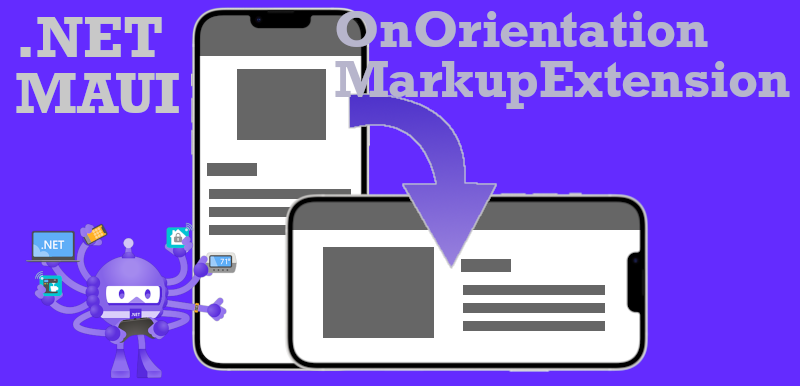
.NET MAUI ermöglicht es uns, plattform- und geräteunabhängige Anwendungen zu schreiben, was eine dynamische Anpassung an die Bildschirmgröße und -form des Benutzers erforderlich macht. In diesem Blog-Beitrag erfahren Sie, wie Sie Ihre XAML-Layouts an unterschiedliche Geräteausrichtungen anpassen können. Dabei verwenden Sie eine ähnliche Syntax wie OnIdiom und OnPlatform, die Ihnen vielleicht schon bekannt ist.
Layouts von mobilen Anwendungen sollten reaktionsfähig sein und sich an verschiedene Bildschirmgrößen und Ausrichtungen anpassen, um ein ansprechendes Benutzererlebnis zu bieten. Obwohl wir daran gewöhnt sind, Geräte im Hochformat zu verwenden, wo es mehr vertikalen als horizontalen Platz auf dem Bildschirm gibt, gibt es immer noch Fälle, in denen es sinnvoll ist, in das Querformat zu wechseln, sogar bei Telefonen.
Eine .NET MAUI App so zu gestalten, dass sie nahtlos zwischen Hoch- und Querformat wechselt, kann eine Herausforderung sein. Der erste Schritt in die richtige Richtung kann darin bestehen, feste Größen nach Möglichkeit zu vermeiden und die Steuerelemente automatisch skalieren zu lassen. Oftmals hat die Anwendung jedoch in beiden Ausrichtungen viel Leerraum, wie im folgenden Beispiel zu sehen ist.
Indem wir Eigenschaften von Layouts wie ColumnDefinitions aus Grid mit unterschiedlichen Werten versehen, können wir den zusätzlichen horizontalen Platz auf dem Bildschirm besser ausnutzen.
Dies lässt sich leicht mit einer benutzerdefinierten MarkupExtension bewerkstelligen, so dass sie direkt in XAML verwendet werden kann, wie hier:
Warum der TypeConverter hier angegeben ist, wird weiter unten erklärt.
Wenn Sie ein Projekt in Xamarin oder .NET MAUI haben, können wir Ihnen helfen, Zeit zu sparen.
Bevor Sie auf eigene Faust loslegen, sollten Sie sich unsere Dienstleistungen ansehen. Unser Team aus erfahrenen Entwicklern freut sich darauf, Ihr Projekt zu besprechen und Ihnen zu helfen, es mit einem hervorragenden Standard abzuschließen.
Wie die OnOrientation-MarkupExtension funktioniert
Im Gegensatz zu anderen MarkupExtensions wie OnPlatform und OnIdiom, bei denen der Faktor, der entscheidet, welcher Wert zu verwenden ist, beim Start festgelegt wird, funktioniert OnOrientation anders, da sich die Ausrichtung zur Laufzeit ändert. Das bedeutet, dass OnOrientation einen Wert liefern muss, der sich zur Laufzeit ändert. Dies kann erreicht werden, indem in ProvideValue(IServiceProvider serviceProvider) ein Binding zurückgegeben wird, mit einer Source, die INotifyPropertyChanged implementiert, in diesem Fall ein Objekt von OnOrientationSource. Die OnOrientationExtension verwendet das Ereignis DeviceDisplay.MainDisplayInfoChanged, um eine Nachricht über den WeakReferenceMessenger zu veröffentlichen.
[ContentProperty(nameof(Default))]
public class OnOrientationExtension : IMarkupExtension<BindingBase>
{
    public Type TypeConverter { get; set; }
    public object Default { get; set; }
    public object Landscape { get; set; }
    public object Portrait { get; set; }

    static OnOrientationExtension()
    {
        DeviceDisplay.MainDisplayInfoChanged += (_, _) => WeakReferenceMessenger.Default.Send(new OrientationChangedMessage());
    }

    public BindingBase ProvideValue(IServiceProvider serviceProvider)
    {
        var typeConverter = TypeConverter != null ? (TypeConverter)Activator.CreateInstance(TypeConverter) : null;

        var orientationSource = new OnOrientationSource { DefaultValue = typeConverter?.ConvertFromInvariantString((string)Default) ?? Default };
        orientationSource.PortraitValue = Portrait == null ? orientationSource.DefaultValue : typeConverter?.ConvertFromInvariantString((string)Portrait) ?? Portrait;
        orientationSource.LandscapeValue = Landscape == null ? orientationSource.DefaultValue : typeConverter?.ConvertFromInvariantString((string)Landscape) ?? Landscape;

        return new Binding
        {
            Mode = BindingMode.OneWay,
            Path = nameof(OnOrientationSource.Value),
            Source = orientationSource
        };
    }

    object IMarkupExtension.ProvideValue(IServiceProvider serviceProvider) => ProvideValue(serviceProvider);

    public class OrientationChangedMessage
    { }
}
OnOrientationSource liefert den aktuellen Wert über die Eigenschaft Value. Ihr Getter wertet die aktuelle Ausrichtung aus und gibt den entsprechenden Wert zurück. Wenn sich die Ausrichtung ändert, empfängt sie die OrientationChangedMessage und feuert das PropertyChanged-Ereignis für Value ab, was zu einer Aktualisierung in der Ansicht führt.
public class OnOrientationSource : INotifyPropertyChanged
{
    private object _defaultValue;
    private object _portraitValue;
    private object _landscapeValue;

    public object DefaultValue
    {
        get => _defaultValue;
        set
        {
            _defaultValue = value;
            PropertyChanged?.Invoke(this, new PropertyChangedEventArgs(nameof(Value)));
        }
    }

    public object PortraitValue
    {
        get => _portraitValue;
        set
        {
            _portraitValue = value;
            PropertyChanged?.Invoke(this, new PropertyChangedEventArgs(nameof(Value)));
        }
    }

    public object LandscapeValue
    {
        get => _landscapeValue;
        set
        {
            _landscapeValue = value;
            PropertyChanged?.Invoke(this, new PropertyChangedEventArgs(nameof(Value)));
        }
    }

    public object Value => DeviceDisplay.MainDisplayInfo.Orientation switch
    {
        DisplayOrientation.Portrait => PortraitValue ?? DefaultValue,
        DisplayOrientation.Landscape => LandscapeValue ?? DefaultValue,
        _ => DefaultValue
    };

    public OnOrientationSource()
    {
        WeakReferenceMessenger.Default.Register<OnOrientationSource,OnOrientationExtension.OrientationChangedMessage>(this, OnOrientationChanged);
    }

    private void OnOrientationChanged(OnOrientationSource r, OnOrientationExtension.OrientationChangedMessage m)
    {
        PropertyChanged?.Invoke(this, new PropertyChangedEventArgs(nameof(Value)));
    }

    public event PropertyChangedEventHandler PropertyChanged;
}
Es ist vielleicht aufgefallen, dass OnOrientationExtension auch die Eigenschaft TypeConverter definiert. Leider greift bei der Verwendung einer MarkupExtension der TypeConverter Mechanismus nicht, was normalerweise zu einer Fehlinterpretation des Typs führt. Deshalb kann TypeConverter verwendet werden, um anzugeben, welche Art von TypeConverter für die Konvertierung des String-Wertes aus dem OnOrientation-Ausdruck verwendet werden soll, was eine einfache Umgehung dieser Einschränkung ist. Um herauszufinden, welcher TypeConverter verwendet werden soll, können Entwickler das TypeConverterAttribute überprüfen, mit dem die BindableProperty annotiert ist, wie im Beispiel dargestellt.
Verwendung von OnOrientation
Installieren Sie CommunityToolkit.Maui in das Projekt
Fügen Sie UseMauiCommunityToolkit() zu MauiProgram.cs hinzu, wenn Sie den MauiAppBuilder konfigurieren
Hinzufügen der beiden Klassen „OnOrientationExtension.cs“ und „OnOrientationSource.cs“ in das .NET MAUI-Projekt
Fügen Sie den Namespace-Alias zur XAML-Datei hinzu
Verwenden Sie OnOrientation entweder inline als MarkupExtension in der Attributsyntax oder über die Syntax von Eigenschaftselementen
Stellen Sie sicher, dass Sie immer einen Wert für Default angeben.
Inline in der Syntax von Attributen
Primitive Werte können einfach wie folgt verwendet werden:
Da die Werte, die Sie in einer MarkupExtension angeben, von einem primitiven Typ wie int oder string sein müssen und die Typkonvertierung mit TypeConverters nicht greift, müssen Sie manchmal x:Static verwenden, um auf statische Variablen oder Enum-Werte zu verweisen.
Wenn ein komplexer Wert benötigt wird und kein passender TypeConverter existiert, dann kann man auch die Syntax von Eigenschaftselementen verwenden, um die verschiedenen Werte anzugeben. Obwohl man argumentieren kann, dass dies für den praktischen Gebrauch viel zu langatmig ist.
Diese Syntax kann aber auch dazu verwendet werden, ganze Ansichten auszuschalten:
<ContentView>
    <ContentView.Content>
        <ext:OnOrientation>
            <Label Text="Dieser Text ist in Standard sichtbar" />
            <ext:OnOrientation.Landscape>
                <Label Text="Dieser Text ist im Querformat sichtbar" />
            </ext:OnOrientation.Landscape>
        </ext:OnOrientation>
    </ContentView.Content>
</ContentView>
Interesse an unserer Arbeit geweckt?
Wir gehen davon aus, dass Sie ein gewisses Interesse an unserer Arbeit gewonnen haben, da Sie es bis hierher geschafft haben. Bitte zögern Sie nicht, uns Ihr Feedback zu geben oder ein Projekt von Ihnen zu besprechen. Wir würden uns freuen, von Ihnen zu hören.
OnOrientation basiert auf der Ausrichtung, die von DeviceDisplay.MainDisplayInfo.Orientation bereitgestellt wird, und funktioniert daher nicht richtig auf Desktop-Plattformen. Außerdem kann ein Binding-Ausdruck nicht als einer der Werte verwendet werden.
Fazit
Das Anpassen des Layouts mit OnOrientationExtension kann recht komfortabel und flexibel sein. Aber denken Sie daran, dass es auch andere Wege gibt, mit Orientierungsänderungen umzugehen, also schauen Sie sich unbedingt diese Artikel an:
Als Head of Technology unterstütze ich mein Team und unsere Kunden hinsichtlich neuester Technologien und Trends in der Android und iOS-Entwicklung. Unsere Projekte profitieren von meiner Xamarin und .NET MAUI-Erfahrung, sowie von meinem Faible für sauberen Code, attraktive UIs und intuitive UX. Du kannst mich gerne für einen Workshop buchen.
In diesem Artikel lernst du, wie du Lottie-Animationen in .NET MAUI integrierst und sie mit Gesten, Scroll-Positionen und CarouselViews verknüpfst. Du erfährst, wie Animationen per Tap, durch Tippen & Halten, über Scroll-Interaktionen sowie beim Wechseln von CarouselView-Seiten gesteuert werden. Zusätzlich bekommst du komplette XAML- und C#-Beispiele, Best Practices und fertige Demo-Videos, um interaktive und moderne UI-Erlebnisse in deiner MAUI-App umzusetzen.
Als Mobile-App-Entwickler:innen müssen wir ständig Informationen zwischen App und Backend austauschen. In den meisten Fällen ist eine RESTful-API die Lösung. Aber was, wenn ein konstanter Datenfluss in beide Richtungen benötigt wird? In diesem Beitrag schauen wir uns MQTT an und wie man eine einfache Chat-App in .NET MAUI erstellt.
This post is a continuation of the Hackathon topic post, where the technical implementation of voice commands in .NET MAUI is revealed, as well as the challenges the development team faced and how they successfully solved them.